Tripsy MCP 2.2: Gemini & Raycast Join the Adventure

As well as all of the amazing updates to Tripsy itself, including full support for the new iPhone Duo, we've been working hard on updates to our MCP server - the part of Tripsy that lets you connect your favorite AI tools to your Tripsy account to plan smarter and connect with a wide range of services and sources of data.
Our latest update, version 2.2, brings a number of fixes under the hood, but also brings support for two new AI tools that were causing some issues for Tripsy users to connect with. We're pleased to say that you can now connect Tripsy with Google Gemini and Raycast AI.
Let me Google (Gemini) That For You!
If you're all in on the Google ecosystem, then using Gemini for your AI needs makes a lot of sense given it can connect into your GMail, Docs, Photos and more.
To connect Gemini to Tripsy:
- Go to https://gemini.google.com/customize/connectors
- Press + Custom to add a new custom MCP server
- Enter MCP server URL as https://mcp.tripsy.app - you don't need to change any other options.
- Press Next
- Agree to Google connecting to the MCP server, you'll see a few different prompts here.
- Sign in to your Tripsy account and authorize the connection.
- Save the custom connector, by default it will be named 'Tripsy MCP', you can change this if required.
With Gemini and Tripsy connected, you can access all of Tripsy's tools to plan your trips, update costs, and much more. As always, you can query the basics:
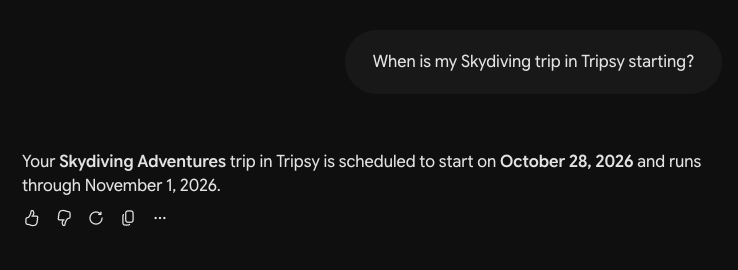
However, let's use the power of Tripsy and Google Maps together to get a recommendation for a coffee shop on the last day of a trip:
For my Skydiving trip in Tripsy, find me good coffee shops not part of a chain that would be open after my hotel checkout on my last day. Show these on a map and let me choose one to add to Tripsy.
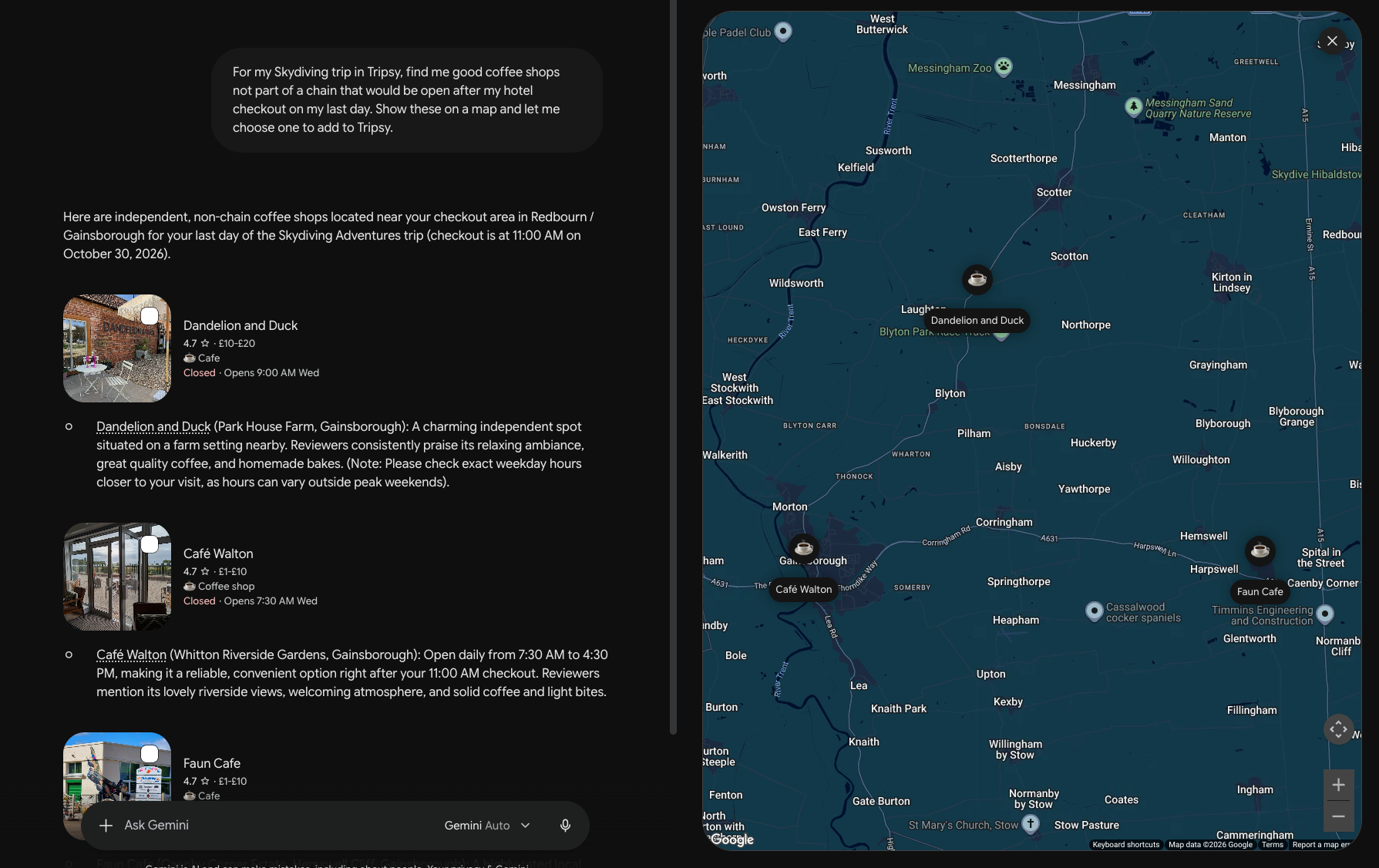
I'm going to choose:
Dandelion and Duck (Park House Farm, Gainsborough): A charming independent spot situated on a farm setting nearby. Reviewers consistently praise its relaxing ambiance, great quality coffee, and homemade bakes. (Note: Please check exact weekday hours closer to your visit, as hours can vary outside peak weekends).
I'll ask Gemini to add this to my trip, but making sure my arrival time is well after my hotel check-out with driving time taken into consideration:
Add Dandelion and Duck to my trip, making sure the activity starts with plenty of time to drive from the hotel, I plan to stay for 1 hour.
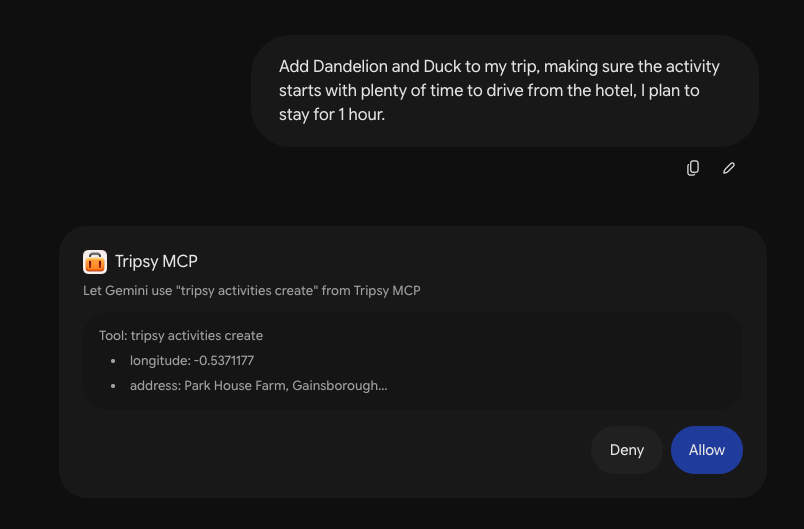
Like all good AI tools, Gemini makes sure it has my permission to create an activity within Tripsy, and once I allow this we get:
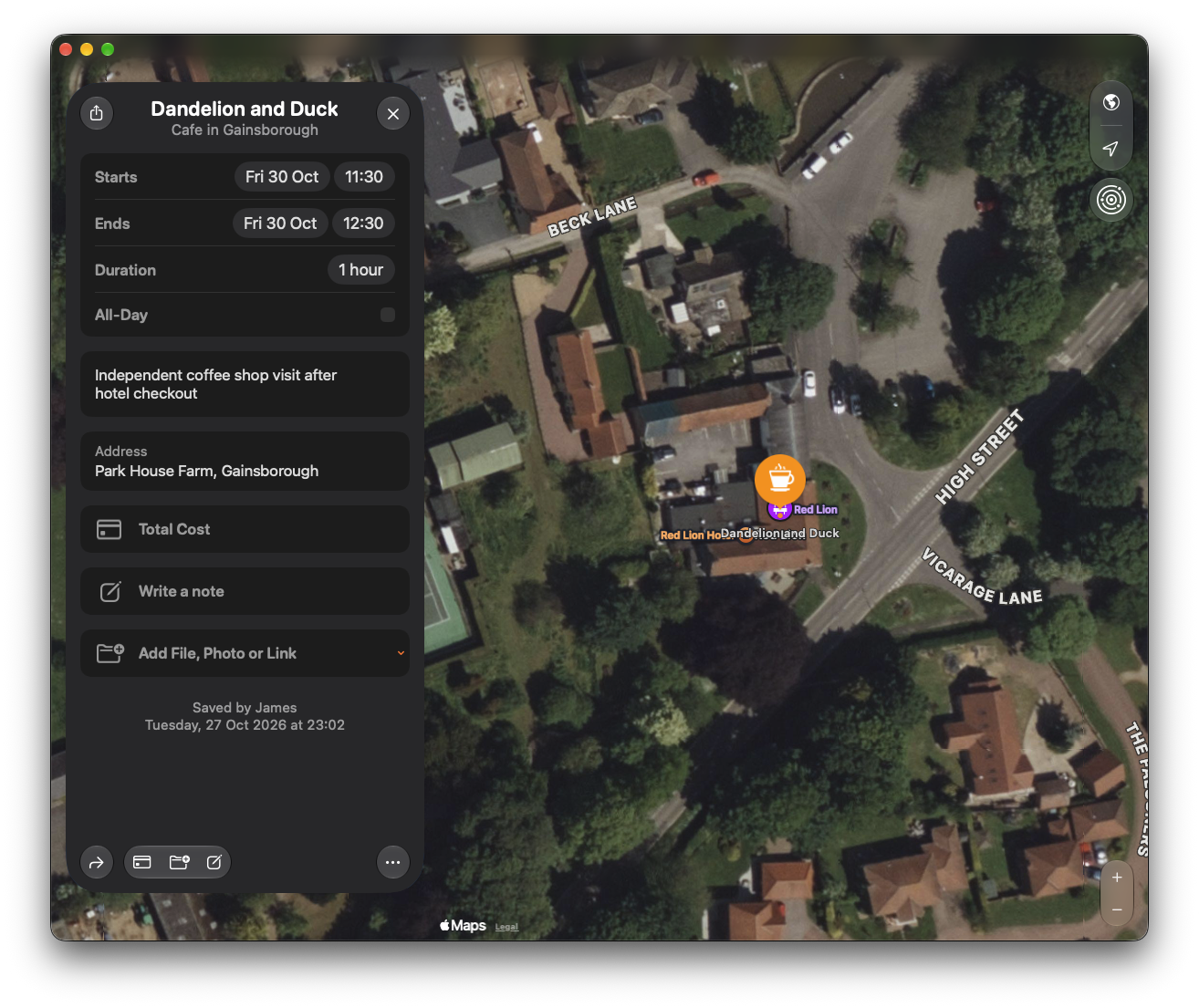
A few other examples of how you could use Gemini with Tripsy would be to ask it to look for all emails related to your Paris trip from GMail and turn those into activities within Tripsy, or ask it to find the places in photos from your trip to New York last year and create a new trip based on those.
A few things to note about Gemini:
- At the moment MCP support on the mobile versions of Gemini is limited to the US and English only, though Google are working on a phased rollout to mobile apps in other regions. This restriction does not seem to apply to the web version of Gemini.
- Some Google services are not available to Gemini depending on your region, for example Google Photos is not available in the EU or UK.
- Some Gemini features may be limited if you're using a company Google Workspace account.
Casting Off with Raycast AI
Raycast is a powerful desktop launcher for both macOS and Windows that lets you search both the web and your local system, as well as connecting with a range of apps via their extensions.
Now, with their Raycast AI feature, you can connect MCP servers like Tripsy to do even more and bridge the gap between whats on your device and what's in your trips.
For full transparency, Raycast AI does require their PRO plan or above; they offer a free trial of course.
To connect Tripsy to Raycast:
- Make sure you're running the latest version of Raycast 2
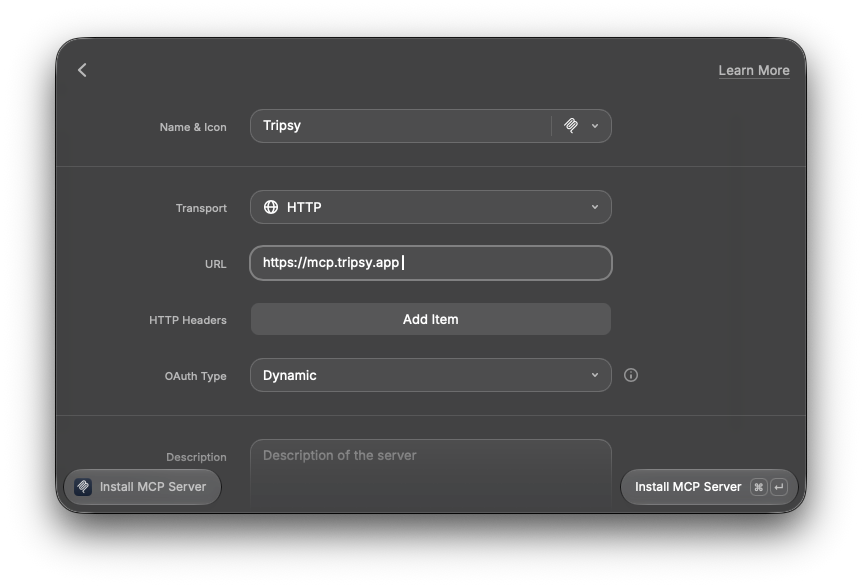
- Open Raycast and run the Install MCP Server command
- Fill in the form:
- Name: Tripsy
- Transport: HTTP
- URL:
https://mcp.tripsy.app
- Press ⌘ + Return (macOS) / Ctrl + Return (Windows) to install
- Our MCP server uses OAuth, so Raycast will prompt you to Sign In - log in with your Tripsy account and you're all set.
Once you have Raycast AI connected to Tripsy, you can start to work with data on your local device and you'll have a @tripsy command within Raycast.
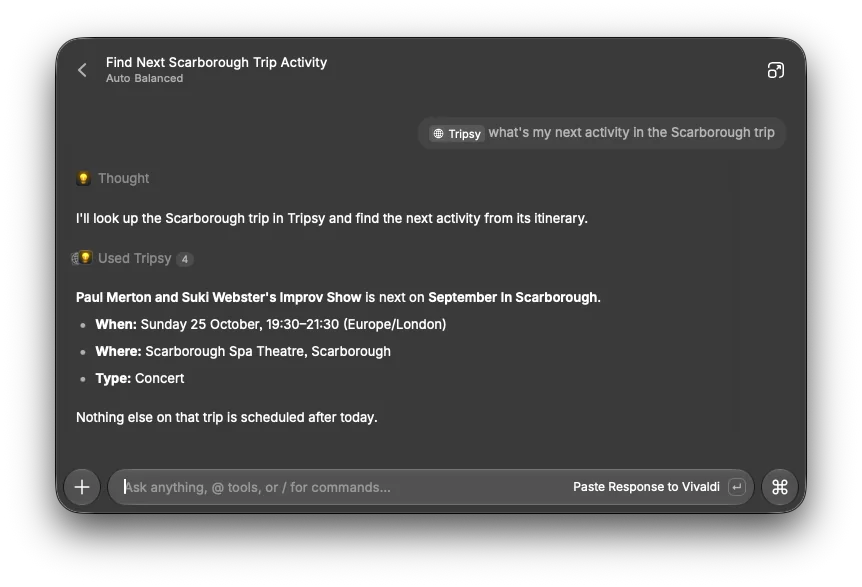
Now, of course, you can do the usual things like asking Raycast when your next activity is, with this being from a recent show myself and my partner got to see:
But, where Raycast becomes more useful is the connections to other apps on your device. In this example, we're going to tackle a common query we get - managing packing lists for your trips with Apple Reminders.
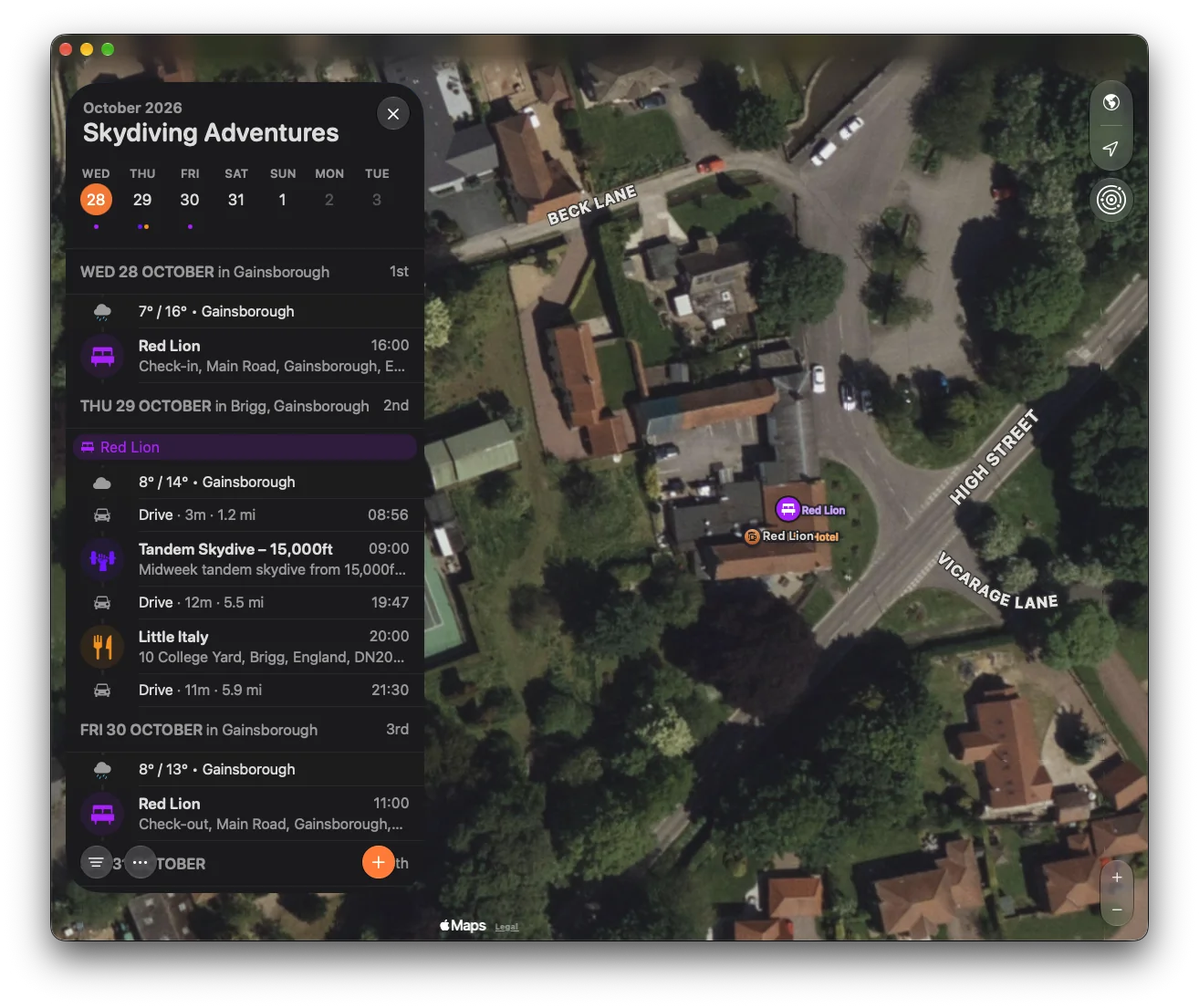
Here's my daring Skydiving trip (it's a test, of course, anyone who knows me will tell you me and heights don't mix):
If I give Raycast AI the following prompt:
@Tripsy add packing items to my Packing List list in @Apple Reminders with a prefix of the trip name for my Skydiving trip.
We'll get the following response from Raycast:
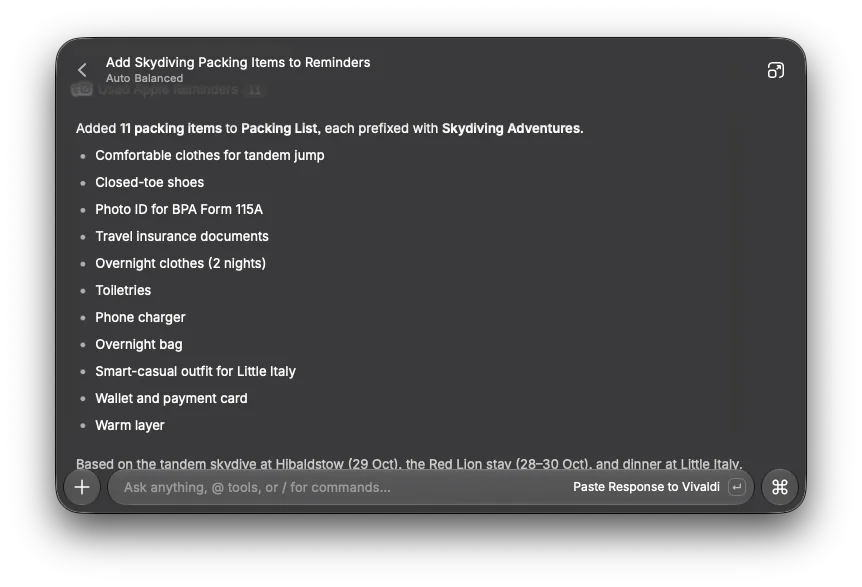
And with that we have a great start in our Packing List within Apple Reminders:
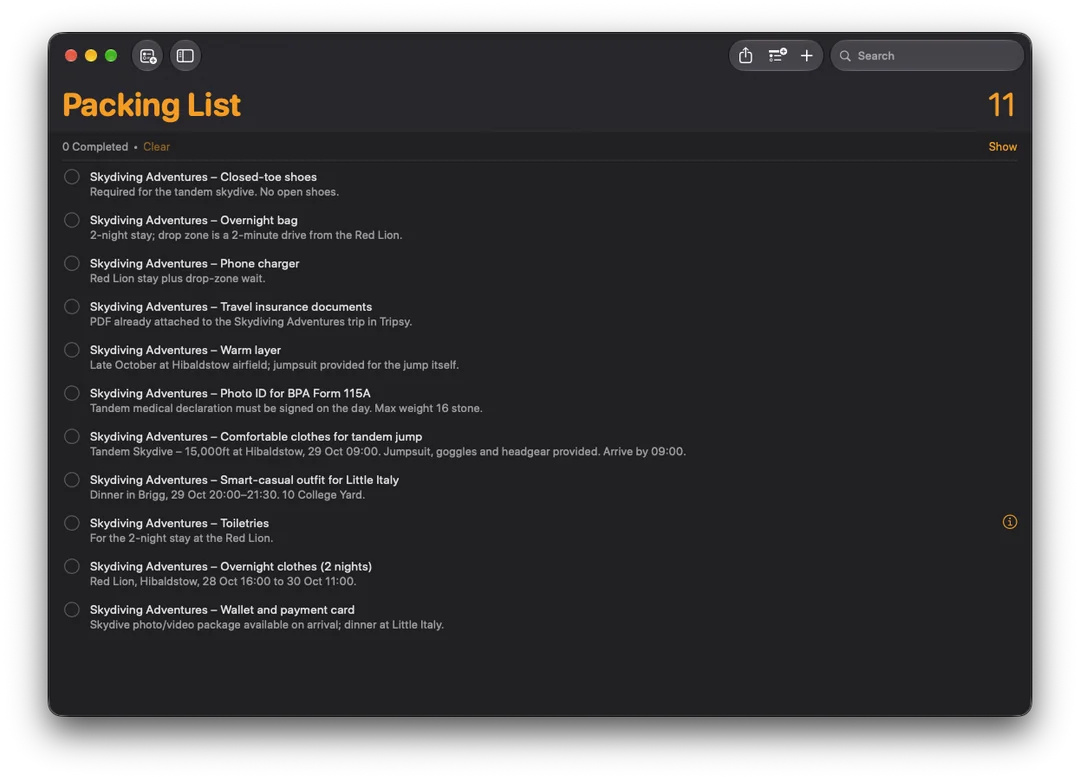
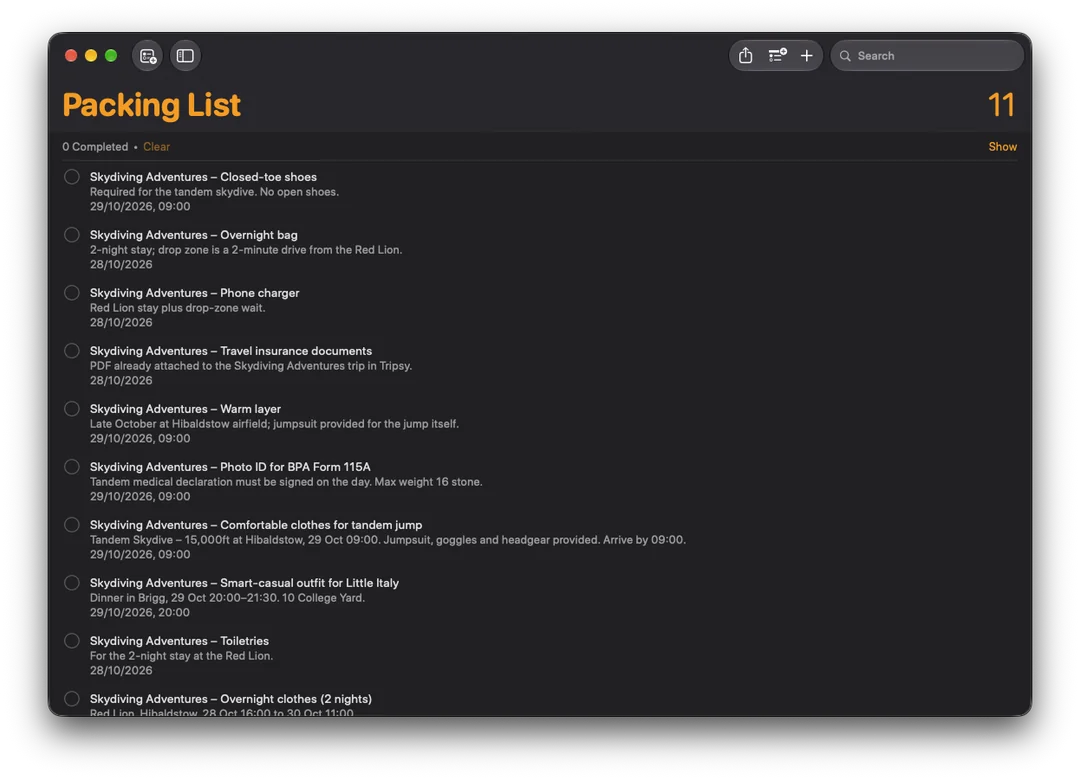
That's looking okay, but it's missing something! Oh, yes, the dates for the reminders so we actually get notified of when they're due. Let's fix that by telling Raycast to use the activity dates as due dates for the list, we then get the following:
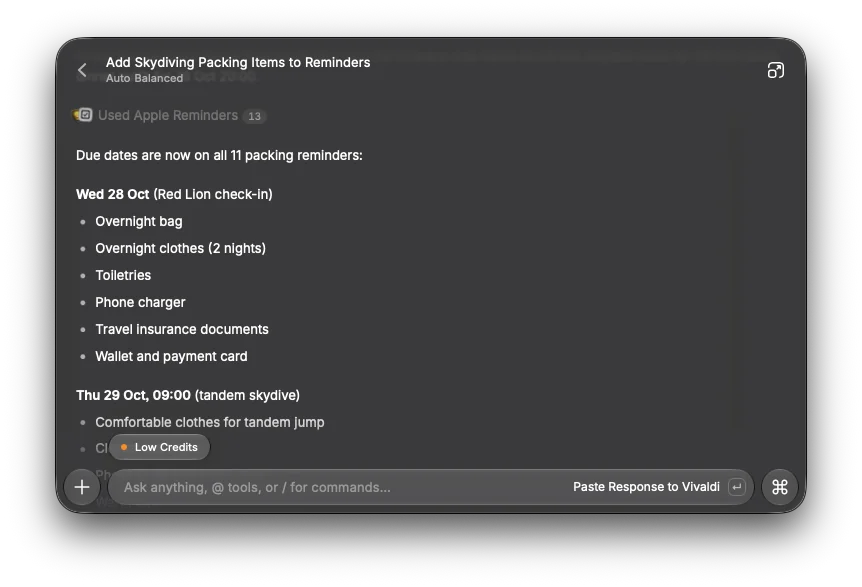
Our packing list looks great, whilst Raycast AI is warning me about low credits which given the amount of testing I did for this post is not unexpected (you can connect your existing Claude or ChatGPT subscriptions for more usage).
This is just a quick example, but with Raycast's extensions, access to your native file system, and a lot more you have a powerful combination of tools to get more data into Tripsy, and have your travel plans from Tripsy reach into even more places.